실습 4 - layout_gravity로 버튼 위치 정렬하기
핵심 포인트
- 부모 LinearLayout 안에서 각 Button의 위치를 정렬할 때
android:layout_gravity를 사용한다.
right, center, left 값에 따라 버튼 자체의 배치 위치가 달라진다.
중요한 코드
<LinearLayout
    xmlns:android="http://schemas.android.com/apk/res/android"
    android:layout_width="match_parent"
    android:layout_height="match_parent"
    android:orientation="vertical">

    <Button
        android:id="@+id/button1"
        android:layout_width="wrap_content"
        android:layout_height="wrap_content"
        android:layout_gravity="right"
        android:text="오른쪽 버튼" />

    <Button
        android:id="@+id/button2"
        android:layout_width="wrap_content"
        android:layout_height="wrap_content"
        android:layout_gravity="center"
        android:text="중앙 버튼" />

    <Button
        android:id="@+id/button3"
        android:layout_width="wrap_content"
        android:layout_height="wrap_content"
        android:layout_gravity="left"
        android:text="왼쪽 버튼" />
</LinearLayout>
정리
layout_gravity는 뷰 자신의 위치를 부모 안에서 어디에 둘지 정하는 속성이다.- 이 실습은 버튼 3개를 서로 다른 정렬 방식으로 배치하는 예제다.

실습 5 - gravity와 layout_gravity로 버튼 정렬하기
핵심 포인트
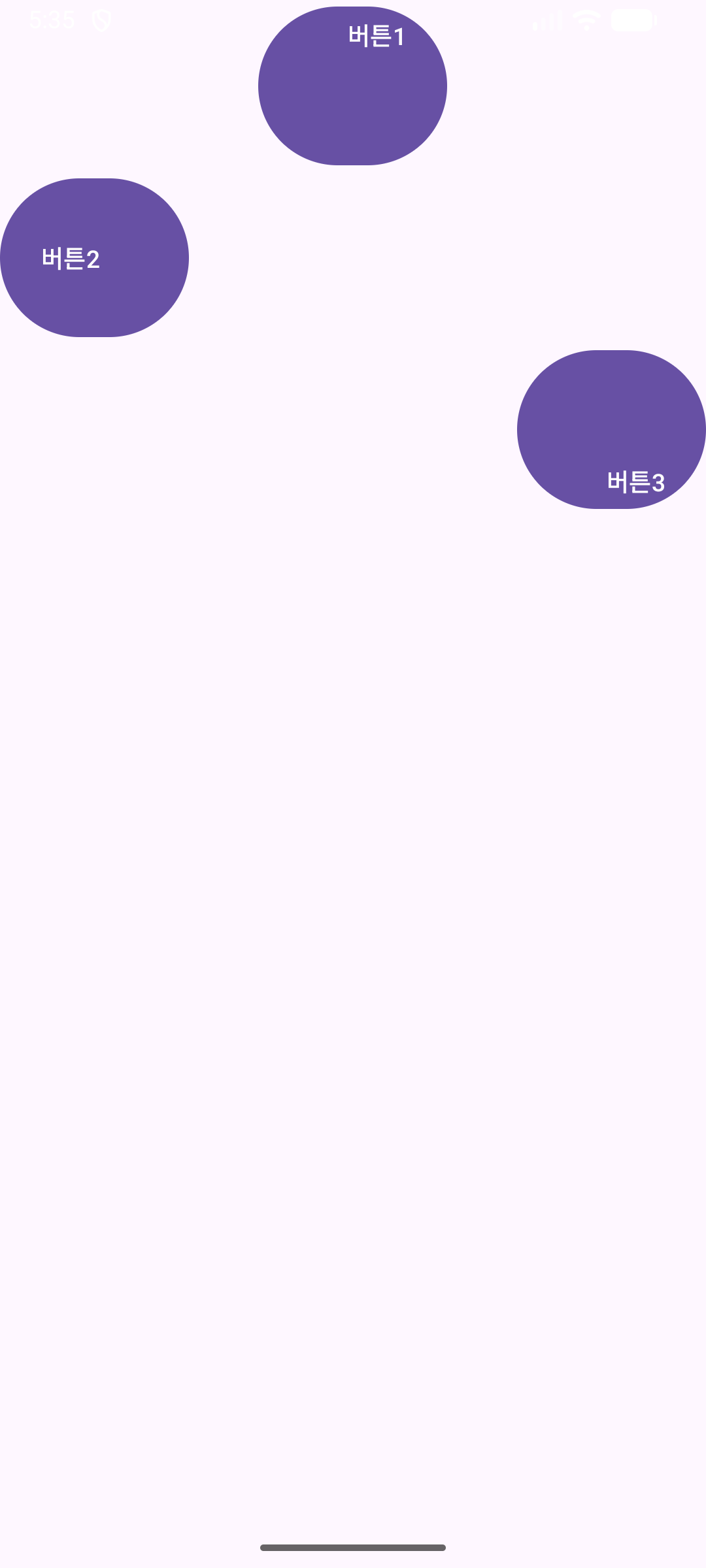
layout_gravity는 버튼의 바깥 위치를 정렬한다.gravity는 버튼 내부의 텍스트 위치를 정렬한다.- 즉, 바깥 정렬과 안쪽 정렬을 동시에 확인하는 실습이다.
중요한 코드
<LinearLayout
    xmlns:android="http://schemas.android.com/apk/res/android"
    android:layout_width="fill_parent"
    android:layout_height="fill_parent"
    android:orientation="vertical">

    <Button
        android:id="@+id/button1"
        android:layout_width="110dp"
        android:layout_height="100dp"
        android:layout_gravity="center"
        android:gravity="top|right"
        android:text="버튼 1" />

    <Button
        android:id="@+id/button2"
        android:layout_width="110dp"
        android:layout_height="100dp"
        android:layout_gravity="left"
        android:gravity="center|left"
        android:text="버튼 2" />

    <Button
        android:id="@+id/button3"
        android:layout_width="110dp"
        android:layout_height="100dp"
        android:layout_gravity="right"
        android:gravity="bottom|right"
        android:text="버튼 3" />
</LinearLayout>
정리
layout_gravity="center"는 버튼 전체를 가운데에 놓는다.gravity="top|right"는 버튼 안의 글자를 위쪽 오른쪽에 놓는다.- 시험에서는
gravity와 layout_gravity 차이를 자주 물을 수 있다.
실습 6 - 중첩 LinearLayout으로 화면 영역 배치하기
핵심 포인트
- 하나의 LinearLayout 안에 또 다른 LinearLayout을 넣어 화면을 여러 구역으로 나눈다.
- 각 내부 레이아웃의
orientation을 다르게 설정해 세로 배치와 가로 배치를 함께 사용한다.
wrap_content로 내부 레이아웃 높이를 내용 크기만큼만 차지하게 만든다.
중요한 코드
<LinearLayout
    xmlns:android="http://schemas.android.com/apk/res/android"
    android:layout_width="match_parent"
    android:layout_height="match_parent"
    android:orientation="vertical">

    <LinearLayout
        android:layout_width="match_parent"
        android:layout_height="wrap_content"
        android:gravity="center"
        android:orientation="vertical">

        <Button
            android:layout_width="wrap_content"
            android:layout_height="wrap_content"
            android:text="버튼 1" />

        <Button
            android:layout_width="wrap_content"
            android:layout_height="wrap_content"
            android:text="버튼 2" />
    </LinearLayout>

    <LinearLayout
        android:layout_width="match_parent"
        android:layout_height="wrap_content"
        android:background="#00FF00"
        android:gravity="center"
        android:orientation="horizontal">

        <Button
            android:layout_width="wrap_content"
            android:layout_height="wrap_content"
            android:text="버튼 3" />

        <Button
            android:layout_width="wrap_content"
            android:layout_height="wrap_content"
            android:text="버튼 4" />
    </LinearLayout>

    <LinearLayout
        android:layout_width="match_parent"
        android:layout_height="wrap_content"
        android:background="#0000FF"
        android:gravity="center"
        android:orientation="vertical">

        <Button
            android:layout_width="wrap_content"
            android:layout_height="wrap_content"
            android:text="버튼 5" />

        <Button
            android:layout_width="wrap_content"
            android:layout_height="wrap_content"
            android:text="버튼 6" />
    </LinearLayout>
</LinearLayout>
정리
- 바깥쪽은 세로 방향
LinearLayout이다.
- 첫 번째 내부 레이아웃은 세로 배치, 두 번째는 가로 배치, 세 번째는 다시 세로 배치다.
- 중첩 레이아웃 구조를 이해하는 데 중요한 예제다.

실습 7 - layout_weight로 영역 비율 나누기
핵심 포인트
- 여러 개의 LinearLayout 영역을 일정 비율로 나눌 때
android:layout_weight를 사용한다.
- 각 영역에
layout_weight="1"을 주면 동일 비율로 공간을 분할한다.
- 실무와 시험 모두에서 매우 자주 나오는 개념이다.
중요한 코드
<LinearLayout
    xmlns:android="http://schemas.android.com/apk/res/android"
    android:layout_width="match_parent"
    android:layout_height="match_parent"
    android:orientation="vertical">

    <LinearLayout
        android:layout_width="match_parent"
        android:layout_height="wrap_content"
        android:layout_weight="1"
        android:gravity="center"
        android:orientation="vertical">

        <Button
            android:layout_width="wrap_content"
            android:layout_height="wrap_content"
            android:text="버튼 1" />

        <Button
            android:layout_width="wrap_content"
            android:layout_height="wrap_content"
            android:text="버튼 2" />
    </LinearLayout>

    <LinearLayout
        android:layout_width="match_parent"
        android:layout_height="wrap_content"
        android:layout_weight="1"
        android:background="#00FF00"
        android:gravity="center"
        android:orientation="horizontal">

        <Button
            android:layout_width="wrap_content"
            android:layout_height="wrap_content"
            android:text="버튼 3" />

        <Button
            android:layout_width="wrap_content"
            android:layout_height="wrap_content"
            android:text="버튼 4" />
    </LinearLayout>

    <LinearLayout
        android:layout_width="match_parent"
        android:layout_height="wrap_content"
        android:layout_weight="1"
        android:background="#0000FF"
        android:gravity="center"
        android:orientation="vertical">

        <Button
            android:layout_width="wrap_content"
            android:layout_height="wrap_content"
            android:text="버튼 5" />

        <Button
            android:layout_width="wrap_content"
            android:layout_height="wrap_content"
            android:text="버튼 6" />
    </LinearLayout>
</LinearLayout>
정리
layout_weight는 남은 공간을 비율로 나눌 때 사용한다.- 여기서는 내부 레이아웃 3개가 모두
1이므로 같은 비율로 공간을 차지한다.
- 중첩 LinearLayout과 weight를 함께 익히는 실습이다.


