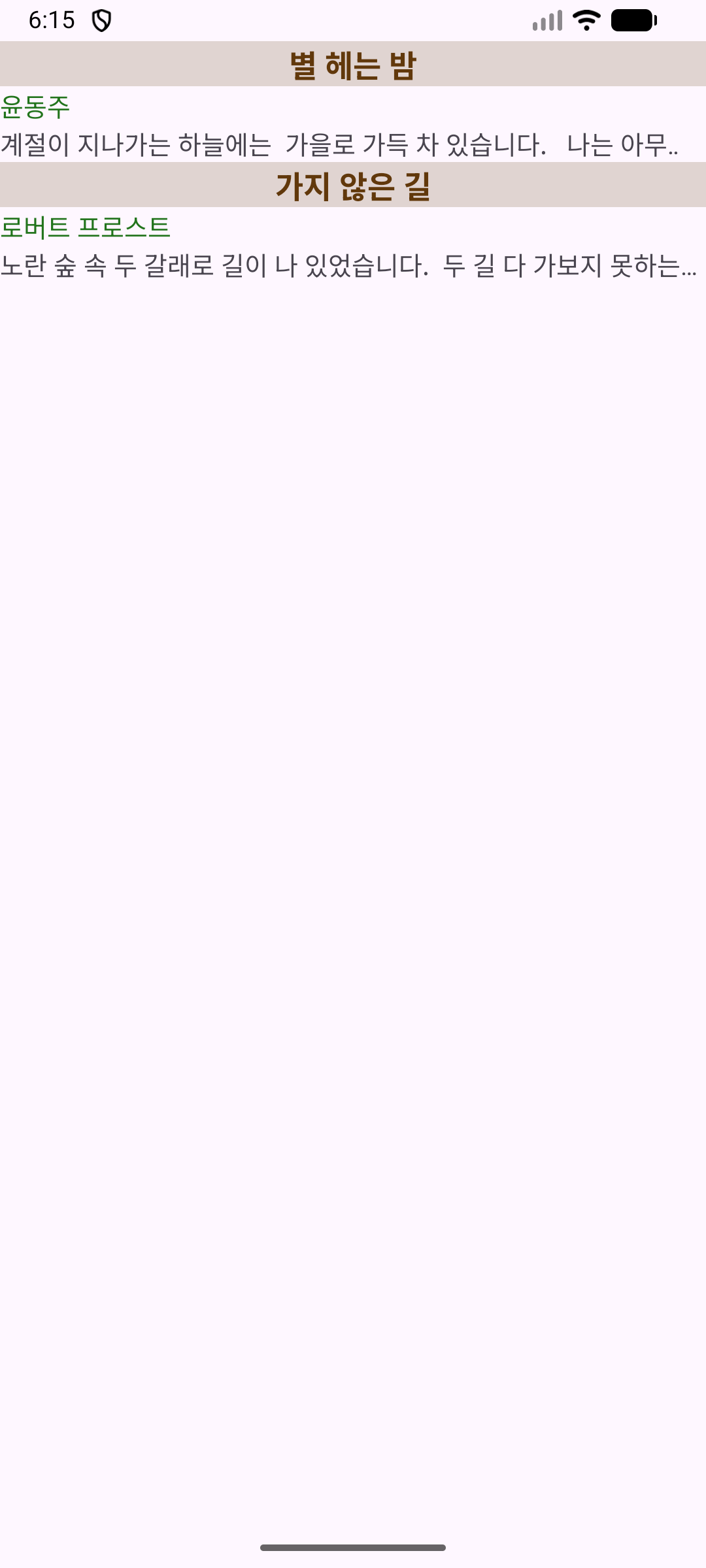
1. 수업 핵심
LinearLayout을 이용해 여러 개의 TextView를 세로로 배치한다.
문자열 리소스(strings.xml)를 분리해서 화면에 출력한다.
drawable 리소스 파일을 만들어 제목 영역과 목록 영역의 모양을 꾸민다.
TextView의 gravity, textStyle, textColor, ellipsize, singleLine 같은 속성을 익힌다.
2. 실습 1: PoemWork 실습 - 1
실습 목적
시 제목, 작가, 본문을 TextView로 세로 배치한다.
padding과 텍스트 속성을 이용해 기본 화면을 만든다.
긴 텍스트를 한 줄로 출력하고 말줄임 또는 marquee 효과를 적용한다.
핵심 파일
res/values/strings.xmlres/layout/activity_main.xmlMainActivity.java
핵심 포인트
제목은 가운데 정렬, 굵은 글자, 배경색 적용
작가명은 별도 색상 적용
본문은 singleLine="true"와 ellipsize 사용
전체 화면은 LinearLayout의 orientation="vertical"로 세로 배치
바깥 여백은 padding으로 지정
strings.xml 핵심
<resources>
    <string name="app_name">시 목록</string>
    <string name="title01">별 헤는 밤</string>
    <string name="author01">윤동주</string>
    <string name="body01">
        계절이 지나가는 하늘에는 \n
        가을로 가득 차 있습니다.\n\n
        나는 아무 걱정도 없이 \n
        가을 속의 별들을 다 헤일 듯합니다.
    </string>

    <string name="title02">가지 않은 길</string>
    <string name="author02">로버트 프로스트</string>
    <string name="body02">
        노란 숲 속 두 갈래로 길이 나 있었습니다.\n
        두 길 다 가보지 못하는 것이 안타까워,\n
        한동안 나그네로 서서 \n
        한쪽 깊이 굽어 꺾여 내려한 곳으로 \n
        눈이 닿는 데까지 멀리 바라보았습니다.
    </string>
</resources>
activity_main.xml 핵심
<?xml version="1.0" encoding="utf-8"?>
<LinearLayout xmlns:android="http://schemas.android.com/apk/res/android"
    android:layout_width="match_parent"
    android:layout_height="match_parent"
    android:orientation="vertical"
    android:padding="10dp">

    <TextView
        android:layout_width="match_parent"
        android:layout_height="wrap_content"
        android:text="@string/title01"
        android:textSize="18sp"
        android:gravity="center"
        android:textStyle="bold"
        android:textColor="#61380B"
        android:background="#3061380B" />

    <TextView
        android:layout_width="match_parent"
        android:layout_height="wrap_content"
        android:text="@string/author01"
        android:textSize="15sp"
        android:textColor="#22741C" />

    <TextView
        android:layout_width="match_parent"
        android:layout_height="wrap_content"
        android:text="@string/body01"
        android:singleLine="true"
        android:ellipsize="marquee"
        android:textSize="15sp" />

    <TextView
        android:layout_width="match_parent"
        android:layout_height="wrap_content"
        android:text="@string/title02"
        android:textSize="18sp"
        android:gravity="center"
        android:textStyle="bold"
        android:textColor="#61380B"
        android:background="#3061380B" />

    <TextView
        android:layout_width="match_parent"
        android:layout_height="wrap_content"
        android:text="@string/author02"
        android:textSize="15sp"
        android:textColor="#22741C" />

    <TextView
        android:layout_width="match_parent"
        android:layout_height="wrap_content"
        android:text="@string/body02"
        android:singleLine="true"
        android:ellipsize="end"
        android:textSize="15sp" />

</LinearLayout>
MainActivity.java 핵심
package com.example.poemwork_1;

import android.os.Bundle;
import androidx.appcompat.app.AppCompatActivity;

public class MainActivity extends AppCompatActivity {
    @Override
    protected void onCreate(Bundle savedInstanceState) {
        super.onCreate(savedInstanceState);
        setContentView(R.layout.activity_main);
    }
}
실습 1에서 기억할 것
gravity는 TextView 내부의 텍스트 정렬이다.singleLine + ellipsize 조합으로 긴 문장을 한 줄 처리할 수 있다.문자열은 XML에 직접 쓰기보다 strings.xml에 분리하는 습관이 중요하다.
3. 실습 2: PoemWork 실습 - 2
실습 목적
drawable 리소스를 사용해 목록 카드처럼 보이도록 화면을 꾸민다.
제목 영역과 전체 묶음 영역의 배경 모양을 각각 분리한다.
중첩 LinearLayout을 사용해 시 하나를 하나의 블록처럼 표현한다.
추가되는 핵심 파일
res/drawable/shape_list.xmlres/drawable/shape_title.xml
핵심 포인트
바깥 LinearLayout 안에 시 1개당 내부 LinearLayout 하나씩 배치
내부 LinearLayout에 @drawable/shape_list를 줘서 묶음 배경 설정
제목 TextView에 @drawable/shape_title를 줘서 제목 바 스타일 적용
본문은 ellipsize="end"로 통일
shape_list.xml 핵심
<?xml version="1.0" encoding="utf-8"?>
<shape xmlns:android="http://schemas.android.com/apk/res/android"
    android:shape="rectangle">

    <solid android:color="#1061380B" />

    <stroke
        android:width="1dp"
        android:color="#000000" />

    <padding
        android:left="10dp"
        android:top="5dp"
        android:right="10dp"
        android:bottom="5dp" />

    <corners android:radius="10dp" />
</shape>
shape_title.xml 핵심
<?xml version="1.0" encoding="utf-8"?>
<shape xmlns:android="http://schemas.android.com/apk/res/android"
    android:shape="rectangle">

    <solid android:color="#3061380B" />

    <padding
        android:left="10dp"
        android:top="2dp"
        android:right="10dp"
        android:bottom="2dp" />

    <corners android:radius="5dp" />
</shape>
activity_main.xml 핵심
<?xml version="1.0" encoding="utf-8"?>
<LinearLayout xmlns:android="http://schemas.android.com/apk/res/android"
    android:layout_width="match_parent"
    android:layout_height="match_parent"
    android:orientation="vertical">

    <LinearLayout
        android:layout_width="match_parent"
        android:layout_height="wrap_content"
        android:orientation="vertical"
        android:background="@drawable/shape_list">

        <TextView
            android:layout_width="match_parent"
            android:layout_height="wrap_content"
            android:text="@string/title01"
            android:textSize="18sp"
            android:gravity="center"
            android:textStyle="bold"
            android:textColor="#61380B"
            android:background="@drawable/shape_title" />

        <TextView
            android:layout_width="match_parent"
            android:layout_height="wrap_content"
            android:text="@string/author01"
            android:textSize="15sp"
            android:textColor="#22741C" />

        <TextView
            android:layout_width="match_parent"
            android:layout_height="wrap_content"
            android:text="@string/body01"
            android:singleLine="true"
            android:ellipsize="end"
            android:textSize="15sp" />
    </LinearLayout>

    <LinearLayout
        android:layout_width="match_parent"
        android:layout_height="wrap_content"
        android:orientation="vertical"
        android:background="@drawable/shape_list">

        <TextView
            android:layout_width="match_parent"
            android:layout_height="wrap_content"
            android:text="@string/title02"
            android:textSize="18sp"
            android:gravity="center"
            android:textStyle="bold"
            android:textColor="#61380B"
            android:background="@drawable/shape_title" />

        <TextView
            android:layout_width="match_parent"
            android:layout_height="wrap_content"
            android:text="@string/author02"
            android:textSize="15sp"
            android:textColor="#22741C" />

        <TextView
            android:layout_width="match_parent"
            android:layout_height="wrap_content"
            android:text="@string/body02"
            android:singleLine="true"
            android:ellipsize="end"
            android:textSize="15sp" />
    </LinearLayout>

</LinearLayout>
실습 2에서 기억할 것
drawable 폴더의 shape XML로 배경 모양을 직접 만들 수 있다.solid, stroke, padding, corners 조합이 가장 기본이다.중첩 LinearLayout을 쓰면 화면을 블록 단위로 묶어서 설계하기 쉽다.